BluQube User Guide
Version: 2.10.50 | Date: 2026-11-07 Last Verified Against Code: 2026-11-07 (BluQube branding pass against live UI v2.10.50); 2026-11-06 (left-nav labels and role table); 2026-09-14 (processing-status matrix)
Audience: BluQube users — legal nurse consultants, attorneys, and case staff working in the dashboard. CLI/API commands are marked Advanced and are for IT/engineering staff only; you do not need them for normal case work.
See also: Troubleshooting · Best Practices · Task Map · CRCM Factors
Table of Contents
- Getting Started
- Dashboard Workbench
- Managing Cases
- Evidence Management
- Running Analysis
- Risk Observatory
- Viewing Reports
- AI-Assisted Analysis
- Exporting Data
- Report Studio
Getting Started
Starting the Server
Standalone Mode (single user):
uv run lncnexus serve-workspace ./workspace --port 8765Open http://127.0.0.1:8765 in your browser.
SaaS Mode (multi-user with authentication):
uv run lncnexus serve-workspace ./workspace --saas-db nexus.sqlite --port 8765Creating Your First Case
- Open the live dashboard at http://127.0.0.1:8765/
- Click New Case and fill in the case details.
Advanced: cases can also be created through the REST API (POST /api/cases) for scripted intake — see the Cases API reference.
Dashboard Workbench
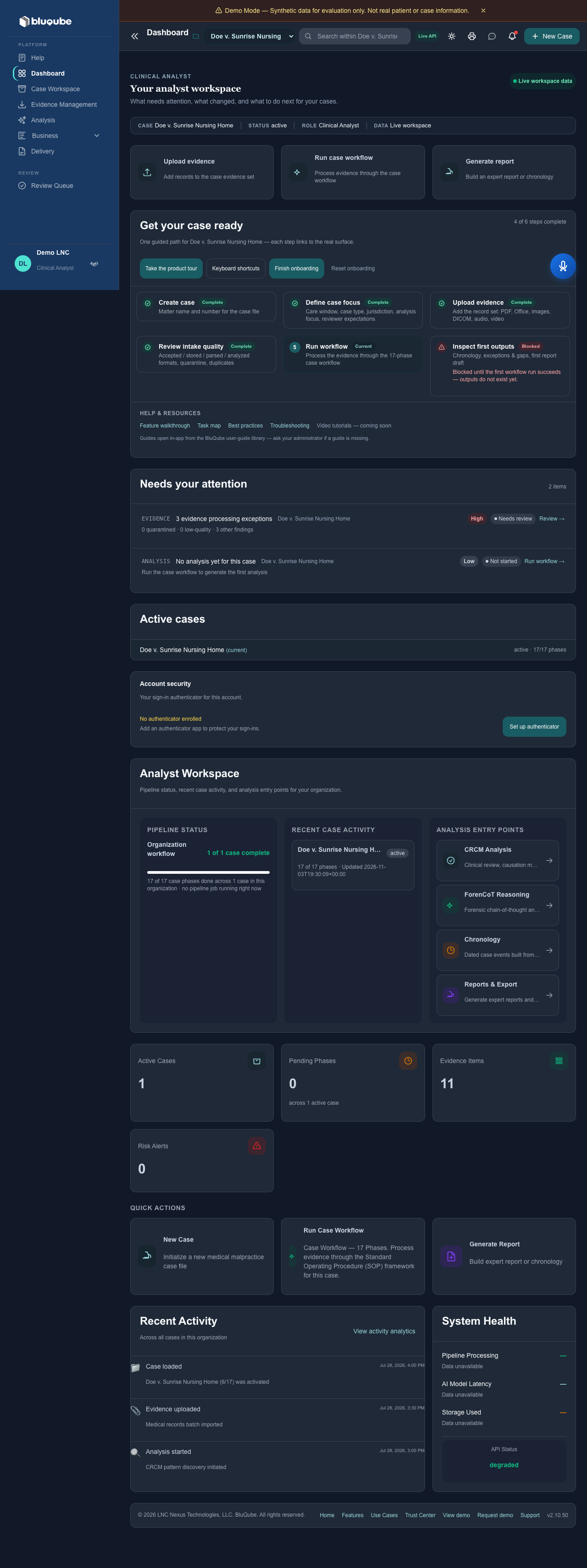
Open the live workbench through the running server:
http://127.0.0.1:8765/?case_id=doe-v-sunriseThe workbench provides case selection and creation, phase execution, evidence and analysis views, CRCM and ForenCoT actions, exports, notifications, monitoring, analytics, and administrative AI controls. The case_id query parameter selects the case; the page uses the same origin for API requests and session cookies. Opening lncnexus/ui/dashboard.html directly is a read-only preview.
Each data panel loads independently. If the server or one endpoint is unavailable, the page keeps the other panels usable, displays an offline or resource error state, and offers retry. Pending actions are visibly disabled until completion. Use keyboard focus and Escape to close modals; print and reduced-motion styles are supported.
Role-based access
The live workbench mirrors the server membership policy:
| Role | Workbench access |
|---|---|
| Owner / Administrator | All platform pages, operations, administration, and write actions |
| Clinical Analyst | Platform pages and case/evidence/analysis write actions; no administration |
| Reviewer | Platform pages in read-only mode; no uploads, execution, exports, or administration |
| Client Viewer | Dashboard and approved client deliverables only |
Administrative navigation and controls are hidden for non-administrators, and the server remains the authority if a user attempts to call a hidden route. Client viewers do not use onboarding APIs and are sent directly to the deliverables portal after sign-in.
Managing Cases
Case Status Dashboard
Open Dashboard in the left navigation. Each case is shown with a progress bar indicating completed phases out of 17 total.
Advanced: the case list can also be retrieved from the command line with uv run lncnexus list-cases ./workspace.
Evidence Management
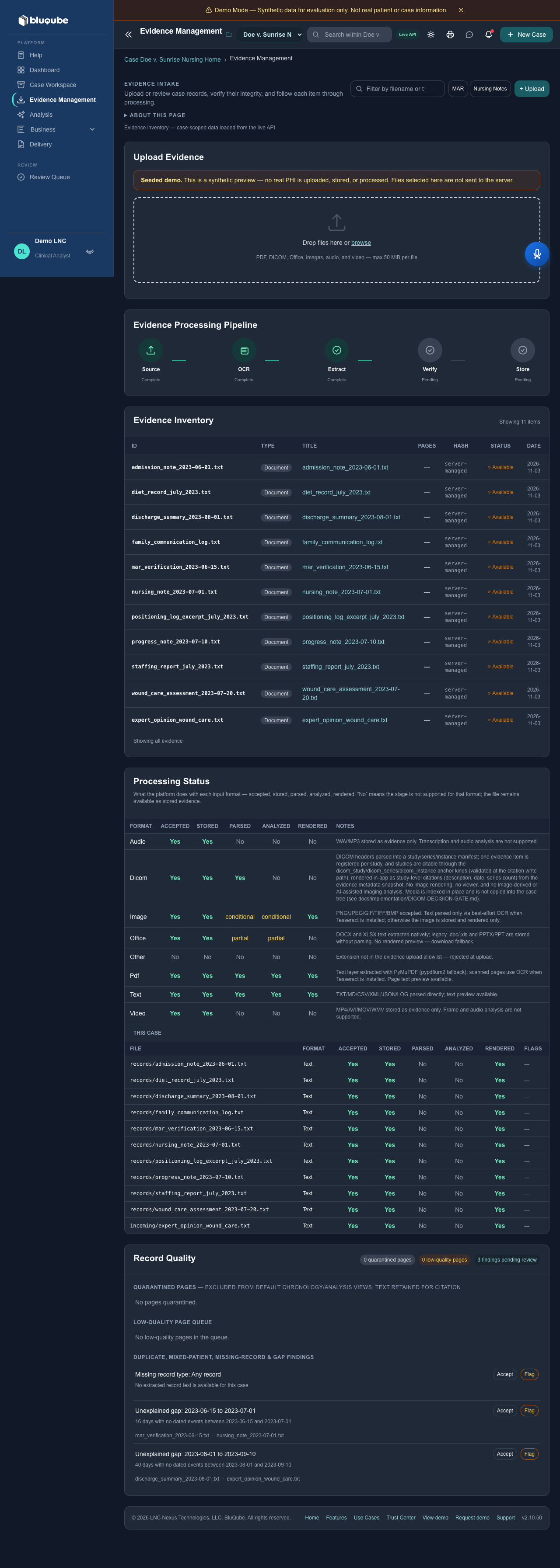
Uploading Files
- Open Evidence Management in the left navigation.
- Click Upload, choose the file(s), and confirm.
Uploads are limited to 50 MB per file by default; split larger packages into multiple files. (An administrator can raise this limit server-wide for large DICOM or video packages — see Best Practices.) A single upload request is capped at 500 MB in total, whatever the number of files in it. Supported formats include PDF, DICOM, Microsoft Office files, text/structured documents, images, audio, and video. The server rejects unsupported extensions, empty or oversized files, and content that does not match its filename extension.
Advanced: files can also be ingested from the command line (uv run lncnexus ingest ./workspace/cases/CASE-001 record.pdf --destination incoming) or uploaded via the REST API — see the Evidence API reference.
Only active owners, admins, and LNC analysts can upload in SaaS mode. Reviewers, client viewers, and inactive members can review permitted evidence but cannot create uploads. File-format checks do not determine whether a document is PHI; all case evidence should be handled as sensitive clinical data.
Processing status by format
Not every uploaded format is parsed, analyzed, or rendered. The Evidence Management page shows a Processing Status matrix so you always know what the platform actually does with each file. The five stages are:
- Accepted — the file type is in the upload allowlist.
- Stored — the file is saved to the case as evidence (always retrievable).
- Parsed — text/content was extracted from the file.
- Analyzed — the extracted content feeds the chronology / CRCM / ForenCoT.
- Rendered — the content has a preview in the evidence detail view.
| Format | Accepted | Stored | Parsed | Analyzed | Rendered | Notes |
|---|---|---|---|---|---|---|
| Yes | Yes | Yes | Yes | Yes | Text layer via PyMuPDF (pypdfium2 fallback); scanned pages use OCR when Tesseract is installed. | |
| Image (PNG/JPEG/GIF/TIFF/BMP) | Yes | Yes | Conditional | Conditional | Yes | Text parsed only via best-effort OCR when Tesseract is installed; otherwise stored and rendered only. |
| Office (DOCX/XLSX/DOC/XLS/PPTX) | Yes | Yes | Partial | Partial | No | DOCX/XLSX extracted natively; legacy .doc/.xls and PPTX stored without parsing. Download fallback. |
| Audio (WAV/MP3) | Yes | Yes | No | No | No | Stored as evidence only. Transcription is not supported. |
| Video (MP4/AVI/MOV/WMV) | Yes | Yes | No | No | No | Stored as evidence only. Frame/audio analysis is not supported. |
| DICOM (.dcm) | Yes | Yes | Yes | No | No | DICOM headers are parsed into a study/series/instance manifest; one evidence item is registered per study, and studies are citable via the dicom_study/dicom_series/dicom_instance anchors. No image rendering, no viewer, and no image-derived or AI-assisted imaging analysis. Media is indexed in place and is not copied into the case tree (see docs/implementation/DICOM-DECISION-GATE.md). |
| Text (TXT/MD/CSV/XML/JSON/LOG) | Yes | Yes | Yes | Yes | Yes | Parsed directly; text preview available. |
A No means that stage is not supported for the format — the file remains available as stored evidence and can be downloaded for out-of-band review.
Record quality and intake controls
After a case is analyzed, the Evidence Management page also shows a Record Quality section with three reviewable surfaces:
analysis views (calendar-grid MAR pages, table-of-contents pages, bare ICD code dumps, column-header noise, and mixed-patient pages). The page text is retained and still citable by page number; only its role in analysis is suppressed. Each entry shows the page reference and the reason.
threshold (scanned or handwriting-like OCR). Events drawn from these pages carry a capped confidence and a visible quality status, so a low-confidence extraction never silently becomes a high-confidence fact.
missing expected record types (e.g. no discharge summary or labs), and unexplained time gaps. Each finding is reviewable: record an Accept (reviewed, no further action) or Flag (marked for follow-up) disposition. Dispositions are recorded with the reviewer, timestamp, and note, and are auditable.
- Quarantined Pages — pages excluded from the default chronology and
- Low-Quality Page Queue — pages whose extraction quality is below
- Findings — duplicate pages, duplicate encounters, mixed-patient pages,
Running Analysis
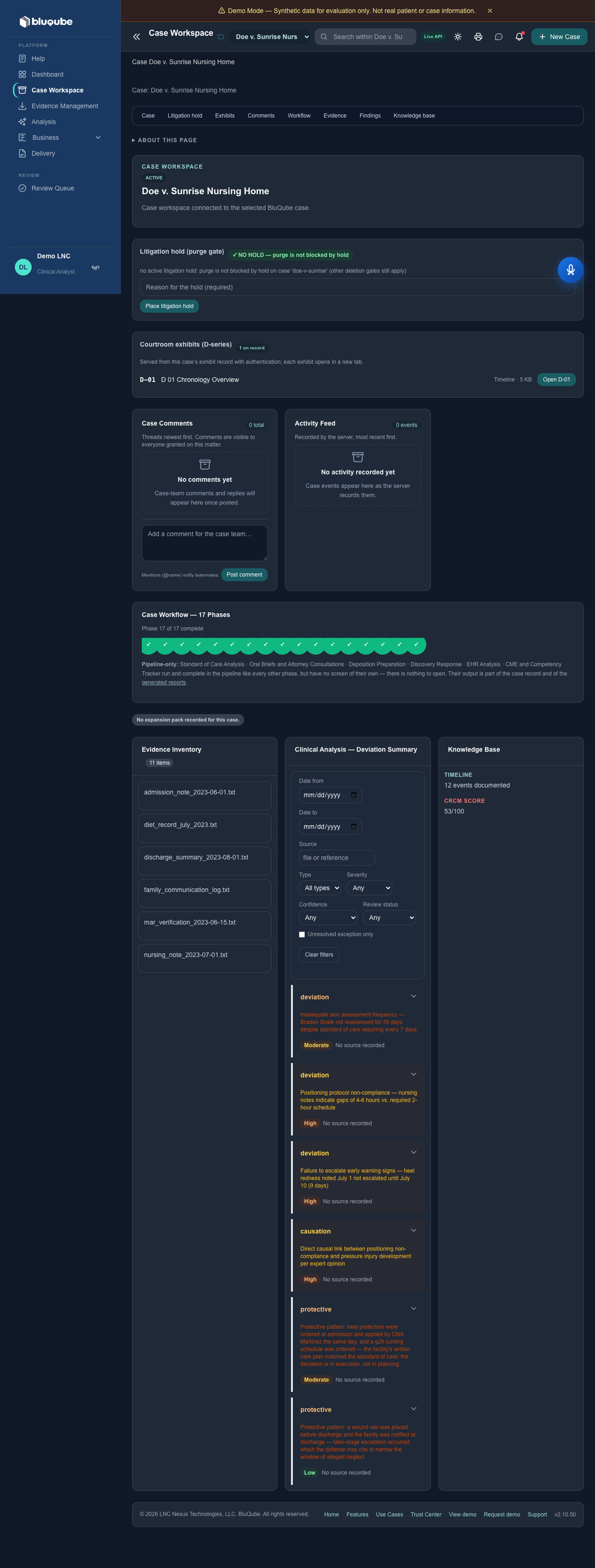
selected case.
phase's status updates live as it runs.
- Open Case Workspace or Analysis in the left navigation for the
- Run the next phase, or all remaining phases, from the phase tracker. Each
Advanced: phases can also be run from the command line —uv run lncnexus run-all ./workspace/cases/CASE-001(all phases) oruv run lncnexus run-phase ./workspace/cases/CASE-001 CS-CLN-003(a single phase).
Phase Overview
All 17 SOP phases, in execution order:
| Phase | Code | Description |
|---|---|---|
| Case Intake and Triage | CS-CLN-001 | Conflict check, scope definition |
| Record Intake, Inventory, and Organization | CS-CLN-002 | Record inventory, gap analysis, communication log |
| Chronology Development | CS-CLN-003 | Clinical timeline construction |
| Standard of Care Analysis | CS-CLN-004 | Standards identification. No dedicated screen: standards live in the case knowledge base and are cited on each deviation |
| Deviation Identification | CS-CLN-005 | Breach detection |
| Causation Analysis | CS-CLN-006 | Linking deviations to injuries |
| Expert Report Assembly | CS-CLN-007 | Final report generation |
| Oral Briefs and Attorney Consultations | CS-CLN-008 | Oral brief and follow-up actions. No dedicated screen: the oral brief is an internal attorney work-product report generated in Report Studio and is never promoted to FINAL |
| CRCM and ForenCoT Integration | CS-CLN-009 | Comprehensive Risk and Compliance Model pattern matching |
| Deposition Preparation | CS-CLN-010 | Pipeline-only: vulnerability map, mock deposition, testimony outline. Runs in the pipeline with state visible in the phase tracker; no dedicated screen |
| Peer Review | CS-CLN-011 | Peer review, mitigation execution, updated report version |
| Discovery Response | CS-CLN-012 | Pipeline-only: discovery response, privilege log, litigation hold |
| EHR Analysis | CS-CLN-013 | Pipeline-only: EHR request, validation, audit-trail findings |
| CME and Competency Tracker | CS-CLN-014 | Pipeline-only: qualification packet, expertise match, CME status |
| Case Closure | CS-CLN-015 | Closure record, retention schedule, lessons learned. Closure is a state in the phase tracker, not a screen |
| Visual Aids and Exhibits | CS-CLN-016 | Visual aids, exhibit sets, source-data links |
| Consolidated PDF Generation | CS-CLN-017 | Consolidated PDF package |
"Pipeline-only" means the phase runs in the pipeline and its state shows in the phase tracker, but it has no dedicated screen of its own.
Risk Observatory
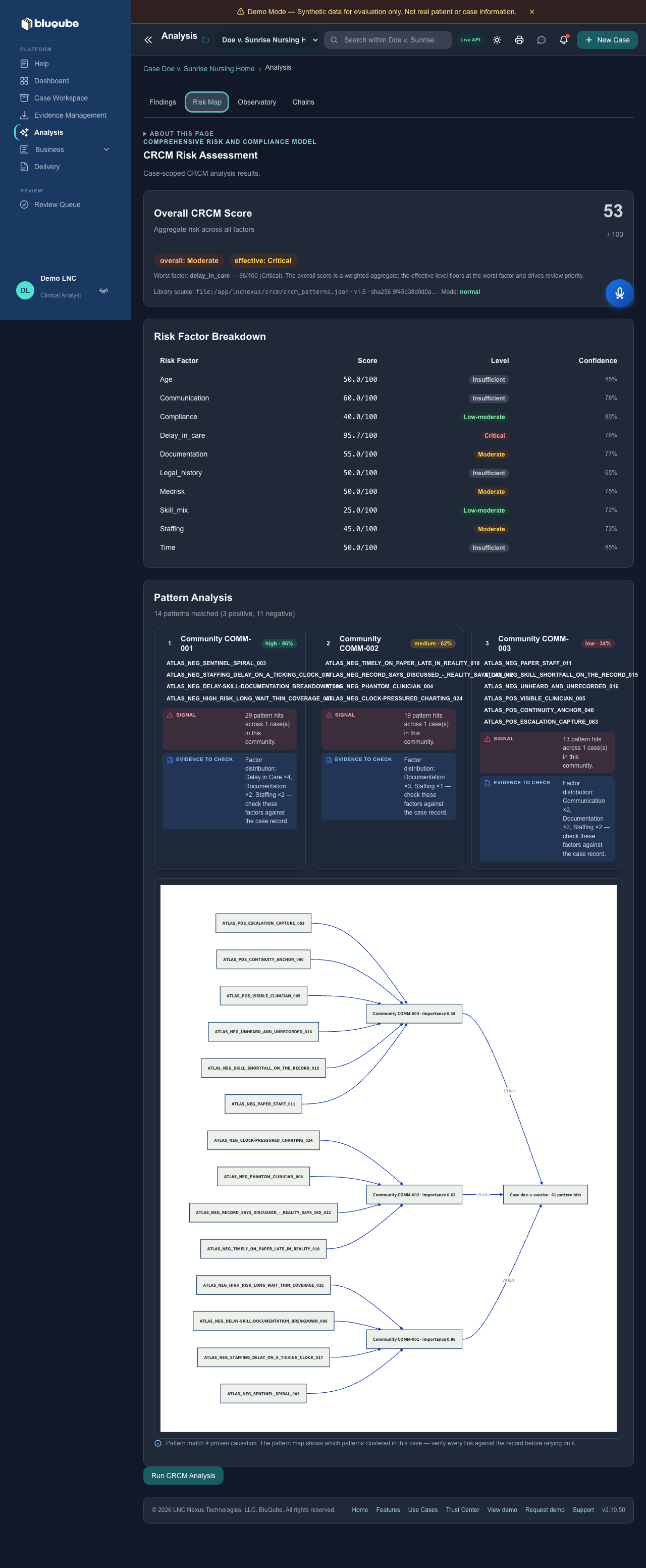
The Observatory tab (inside Case Workspace → Analysis) tracks how a case's risk accumulates as CRCM pattern runs and ForenCoT chains complete — not a single score at one point in time, but the build-up across the case. It also surfaces:
not statistically established (Ψ) — read it as a structured summary of relationships the case data supports, not a prediction.
effectiveness is not assessed.
- A qualitative Relationship Evidence Profile. The underlying model is
- Observed protective signals — documented presence only. Their
Advanced: Observatory data is also available via the REST API — GET /api/observatory?case_id=<case_id>.
Viewing Reports
Open Dashboard or Case Workspace for the selected case to see the status of all 17 phases at a glance. Generated reports and exports are in Delivery (see Report Studio below).
Advanced: phase status and the full case knowledge base are also available via the REST API —GET /api/statusandGET /api/kb.
AI-Assisted Analysis
AI-assisted chronology and analysis run as part of the phase tracker in Case Workspace / Analysis — no separate step is needed.
Important: All AI-generated content must be reviewed by a qualified legal nurse consultant before use.
Advanced: AI chronology can also be triggered directly via the REST API (POST /api/ai/chronology) — see the AI analysis API reference.
Exporting Data
Open Delivery for the selected case and use the Consolidated PDF or Export Package actions on the document you want.
Advanced: exports can also be generated from the command line —uv run lncnexus export-summary ./workspace/cases/CASE-001(summary) oruv run lncnexus export-package ./workspace/cases/CASE-001(full package).
Report Studio
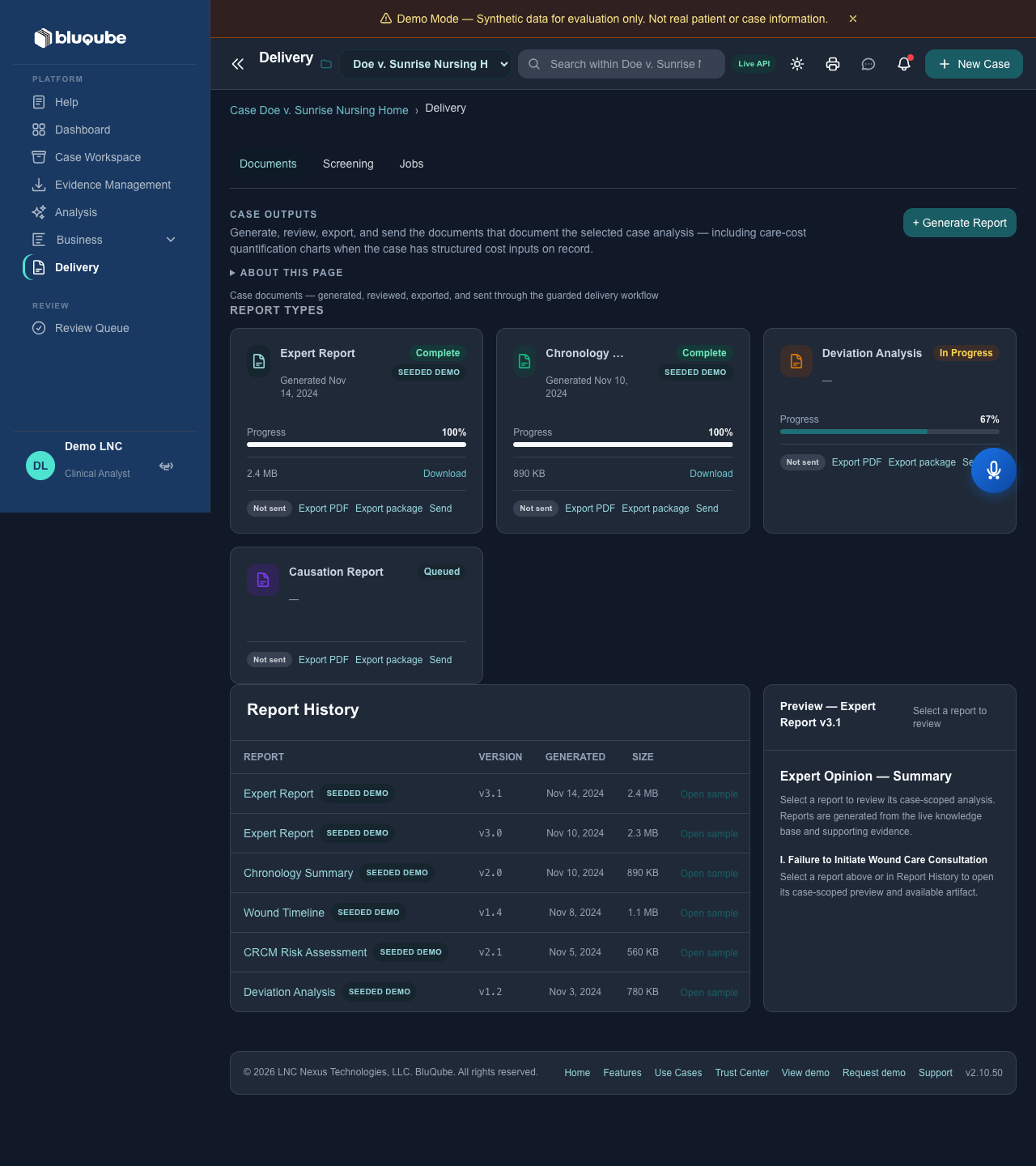
The Report Studio (Reports module → Report Studio card) produces client-ready, cited work products. Every export carries a provenance block (case, generated-by, template, generation time) and a full citation trail back to the source records.
Render modes
- Review — citation chips are visible and clickable; each chip deep-links into the Evidence module at the exact source line. Use this while you are still validating the work product.
- Service — citation chips are suppressed for a clean, client-facing document, but the underlying source map is retained in the export so the citation trail is never lost.
Formats
- HTML and PDF are supported. Both carry the provenance block and citation trail.
- DOCX is not yet supported. The UI and API state this explicitly rather than producing a misleading file. Choose HTML or PDF.
How to generate
signed in as a client viewer).
- Open Delivery in the left navigation (shown as Reports if you are
- In the Report Studio card, pick a render mode (Review or Service).
- Click Generate.
- The job runs as a durable, tenant-scoped, retryable, auditable job. Its status appears in the job list below the card.
- When the job completes, download the artifacts (cited chronology, cited report, case export package, etc.).
Failed jobs
If a job fails, a Retry button appears next to it. Retries are bounded by the job's attempt limit; each attempt is recorded in the job's audit history.
API
# Enqueue + run a report-studio job (render_mode: review | service)
curl -X POST http://127.0.0.1:8765/api/report-studio/generate \
  -H "Content-Type: application/json" \
  -d '{"case_id": "CASE-001", "render_mode": "review"}'

# List report-studio jobs for the current case
curl http://127.0.0.1:8765/api/report-studio/jobs?case_id=CASE-001

# Job status
curl http://127.0.0.1:8765/api/report-studio/jobs/<job_id>

# Retry a failed job
curl -X POST http://127.0.0.1:8765/api/report-studio/jobs/<job_id>/retry

# Download an artifact
curl -OJ http://127.0.0.1:8765/api/report-studio/jobs/<job_id>/artifacts/<filename>
Note: All report-studio work products are drafts for professional review. A qualified legal nurse consultant must review and approve any document before it is served or filed.
Best Practices
See BEST-PRACTICES.md for the full guide. In short: review all AI output before relying on it, keep evidence complete and verified, use the audit trail for decisions, and run the case through all 17 phases for a defensible report.
Disclaimer
BluQube supports professional workflows but does not provide medical or legal advice. AI-generated or AI-assisted content must be reviewed by qualified personnel. Users remain responsible for validating case facts, citations, calculations, timelines, and conclusions.
BluQube — Clinical knowledge. AI analysis. Litigation support. Developer: LNC Nexus Technologies, LLC
Source: BluQube customer documentation
Document reference: docs/user-guide/USER-GUIDE.md